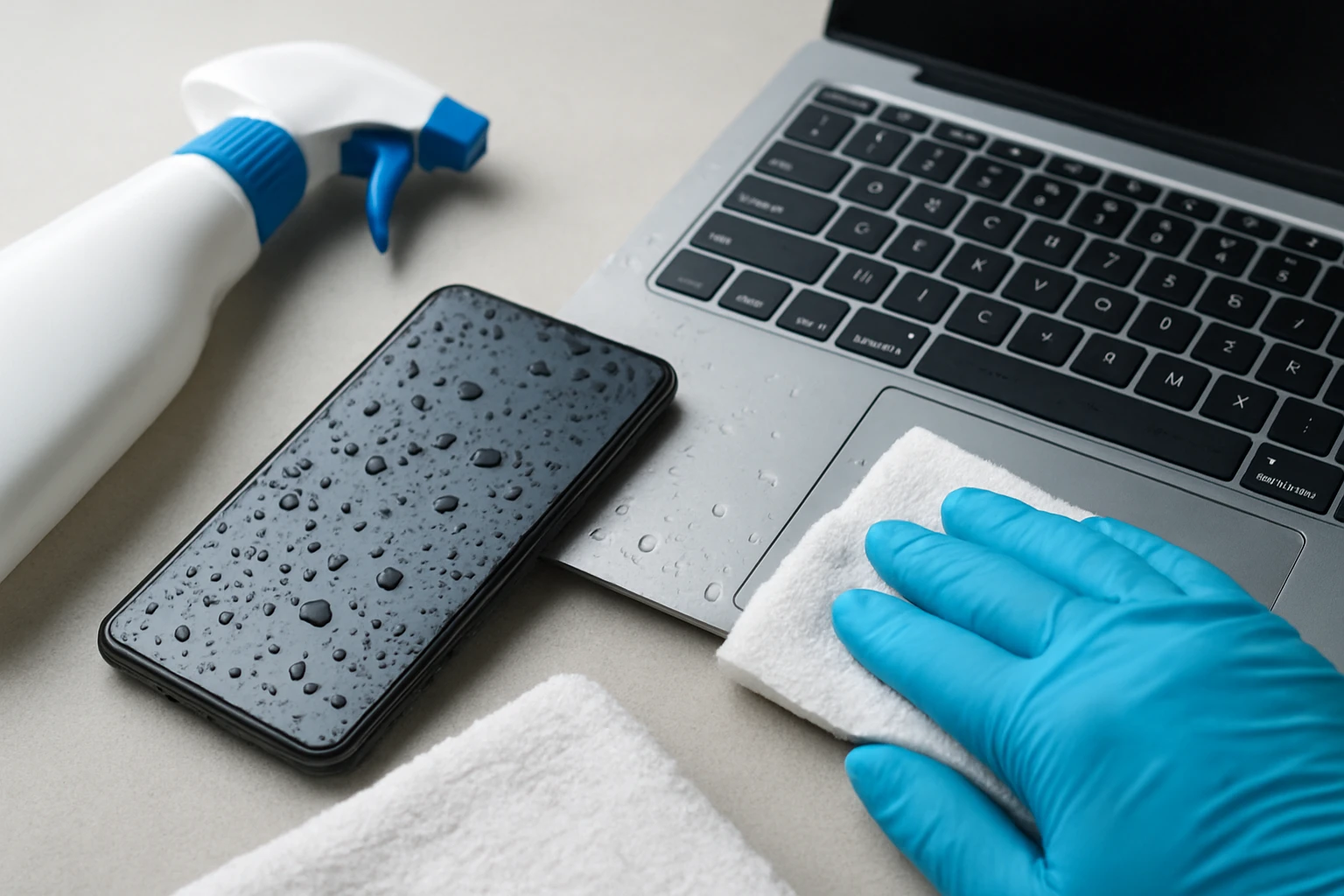
Introduction
When water invades a home or office, electronic devices often become the most vulnerable assets. This guide will teach readers how to safely disinfect phones, laptops, and household appliances after flooding, restoring functionality while preventing mold and microbial growth. By following each step, one can protect valuable equipment, extend its lifespan, and reduce the risk of health hazards associated with contaminated electronics. The procedures combine proven safety practices with carefully selected cleaning tools that are readily available on Amazon.
What You'll Need
- Ordilend Keyboard & Laptop Cleaning Kit – $15.19, 4.6/5 stars (10,120 reviews)
- EVEO Screen Cleaner Spray – $9.93, 4.6/5 stars (33,744 reviews)
- Weiman Electronic Cleaning Wipes – $5.49, 4.2/5 stars (615 reviews)
- Wipex 70% Alcohol Wipes – $27.89, 4.2/5 stars (464 reviews)
- Care Touch Lens Cleaning Wipes – $19.99, 4.6/5 stars (111,108 reviews)
Step 1: Safety First – Power Down and Unplug
The initial priority after any water exposure is to eliminate electrical hazards. Ensure the device is completely turned off, remove batteries, and disconnect all power cords before proceeding. This prevents short circuits that could cause fire or further damage when cleaning agents are applied. If the device was connected to a surge protector, unplug that as well to isolate the entire circuit.
For phones and tablets, press and hold the power button for ten seconds to guarantee a hard shutdown. Laptops may require a removal of the AC adapter and any external peripherals such as USB drives or docking stations. Once the device is fully powered down, place it on a dry, non‑conductive surface such as a wooden table or a silicone mat.
Step 2: Disassemble and Remove Excess Water
Next, gently open any removable panels, keyboard covers, or battery compartments to expose internal cavities. Use a soft, lint‑free cloth to blot visible moisture; avoid rubbing, which could push water deeper into seams. For laptops, detach the keyboard if possible and set it aside on a separate dry towel.
When dealing with larger appliances like a microwave or a small fridge, locate the access panels recommended by the manufacturer and remove them to allow air circulation. Do not use a hair dryer on high heat, as excessive temperature can warp plastic components; instead, employ a low‑speed fan to promote evaporation while you continue cleaning.
Step 3: Clean Surfaces with an Appropriate Cleaner
Surface contaminants such as mud, mineral deposits, and microbial films must be removed before disinfection. For screens, keyboards, and glossy surfaces, the EVEO Screen Cleaner Spray is ideal. This spray is alcohol‑free, non‑corrosive, and safe for LCD, LED, OLED, and retina displays. Its plush microfiber cloth absorbs stubborn stains without leaving fibers, delivering a streak‑free finish.
Apply the spray to the microfiber cloth—not directly onto the device—to avoid excess liquid seeping into seams. Gently wipe the screen in a circular motion, focusing on corners where dust accumulates. The product’s price of $9.93 and rating of 4.6/5 stars reflect its broad compatibility and user satisfaction.
For keyboards, the Ordilend Keyboard & Laptop Cleaning Kit provides a retractable nylon‑bristle brush and a 2 mm thick polishing cloth. The brush removes crumbs and lint from crevices, while the polishing cloth safely lifts fingerprints without scratching delicate keys. Because the kit replaces ten separate tools, it reduces clutter and ensures each component is correctly matched to its purpose.
The kit costs $15.19 and enjoys a 4.6/5‑star rating from over ten thousand reviewers, indicating reliability for both gamers and remote professionals. Use the brush first, then finish with the cloth to achieve a pristine, residue‑free surface.
Step 4: Disinfect Internal Components
After visible cleaning, the critical phase is microbial disinfection. Alcohol‑based wipes are the gold standard because they evaporate quickly, leaving no conductive residue. The Wipex 70% Alcohol Wipes contain 70 % isopropyl alcohol, a concentration proven to kill bacteria, viruses, and mold spores on electronic surfaces.
Open each compartment gently and lightly swipe the interior with a single wipe, ensuring the cloth remains moist but not dripping. The large 5"×7" size covers more area per swipe, reducing the number of wipes required for a laptop chassis or a phone’s charging port. Because the wipes are sealed in a tight‑lid canister, they stay moist for the full 36‑month shelf life, guaranteeing effectiveness when needed.
For delicate lenses, such as camera lenses attached to smartphones or external webcam lenses, the Care Touch Lens Cleaning Wipes provide a streak‑free formula that is safe for coated optics. These wipes are individually wrapped, making them convenient for on‑the‑go use, and they cost $19.99 with a 4.6/5‑star rating from over one hundred thousand users.
If a user prefers a wipe that also disinfects without alcohol, the Weiman Electronic Cleaning Wipes contain a new disinfecting formula that is safe on non‑porous surfaces. They are ideal for quick touch‑ups on remote controls, speaker grills, or external hard‑drive casings. Priced at $5.49 for a pack of fifteen, they offer an economical alternative for low‑risk areas.
Step 5: Dry, Reassemble, and Test
After disinfecting, allow all components to air‑dry completely. Position the device in a low‑humidity environment with a gentle airflow for at least twelve hours; this ensures any residual moisture evaporates before power is restored. Do not use heat guns or ovens, as extreme temperatures can damage solder joints and plastic housings.
Once dry, reassemble the device, reinstall batteries, and reconnect power sources. Perform a functional test by turning the device on and checking each peripheral—keyboard keys, touchscreens, speakers, and ports—for proper operation. If any component remains unresponsive, repeat the cleaning and drying process or consider professional repair.
Tips & Pro Tips
- Work in a well‑ventilated area to disperse any fumes from cleaning agents.
- Label each wipe or brush with the device it belongs to to avoid cross‑contamination.
- For severe water exposure, consider placing the device in a sealed bag with silica gel packets for 48 hours before cleaning.
- Always test a small inconspicuous area with any cleaner to confirm compatibility.
Troubleshooting
Problem: Screen remains hazy after cleaning.
Solution: Use the EVEO Screen Cleaner Spray again, ensuring the microfiber cloth is clean and slightly damp. If haze persists, a professional screen polishing may be required.
Problem: Keyboard keys stick after drying.
Solution: Remove the keycaps (if mechanical) with the Ordilend keycap puller, clean the underlying switches with an alcohol wipe, and re‑install the caps once dry.
Problem: Device does not power on after disinfection.
Solution: Verify that no moisture remains inside connectors; repeat the drying stage and consider using a low‑power fan for additional airflow.
Conclusion
This guide has outlined a systematic approach to disinfecting electronics after flooding, emphasizing safety, thorough cleaning, and proper drying. By employing tools such as the Ordilend Cleaning Kit, EVEO Screen Cleaner, Wipex Alcohol Wipes, and Care Touch Lens Wipes, one can efficiently remove contaminants while protecting delicate components. Following these steps will restore functionality, extend device lifespan, and safeguard health, allowing readers to resume work or communication with confidence.
Products Mentioned in This Guide
Frequently Asked Questions
How should I safely power on an electronic device after it has been flooded?
First ensure the device is completely dry (at least 48 hours) and inspect for visible damage, then connect it to a surge protector and turn it on briefly to test functionality.
What cleaning products are recommended for disinfecting flooded electronics?
Use a microfiber cleaning kit like the Ordilend Keyboard & Laptop Cleaning Kit, EVEO Screen Cleaner Spray, and Weiman Electronic Cleaning Wipes to gently remove contaminants without harming circuitry.
Can mold grow inside electronics after water exposure?
Yes, moisture trapped inside can foster mold; thorough drying and applying antimicrobial wipes helps prevent microbial growth.
Is it safe to submerge a phone in alcohol or other disinfectants after flooding?
No, submerging phones in liquids can damage internal components; instead, wipe the exterior with approved electronic cleaning wipes and let it air‑dry.
How long should I let flooded appliances dry before attempting to clean them?
Allow at least 24–48 hours of air circulation in a low‑humidity environment, using fans or a dehumidifier to accelerate drying before cleaning.