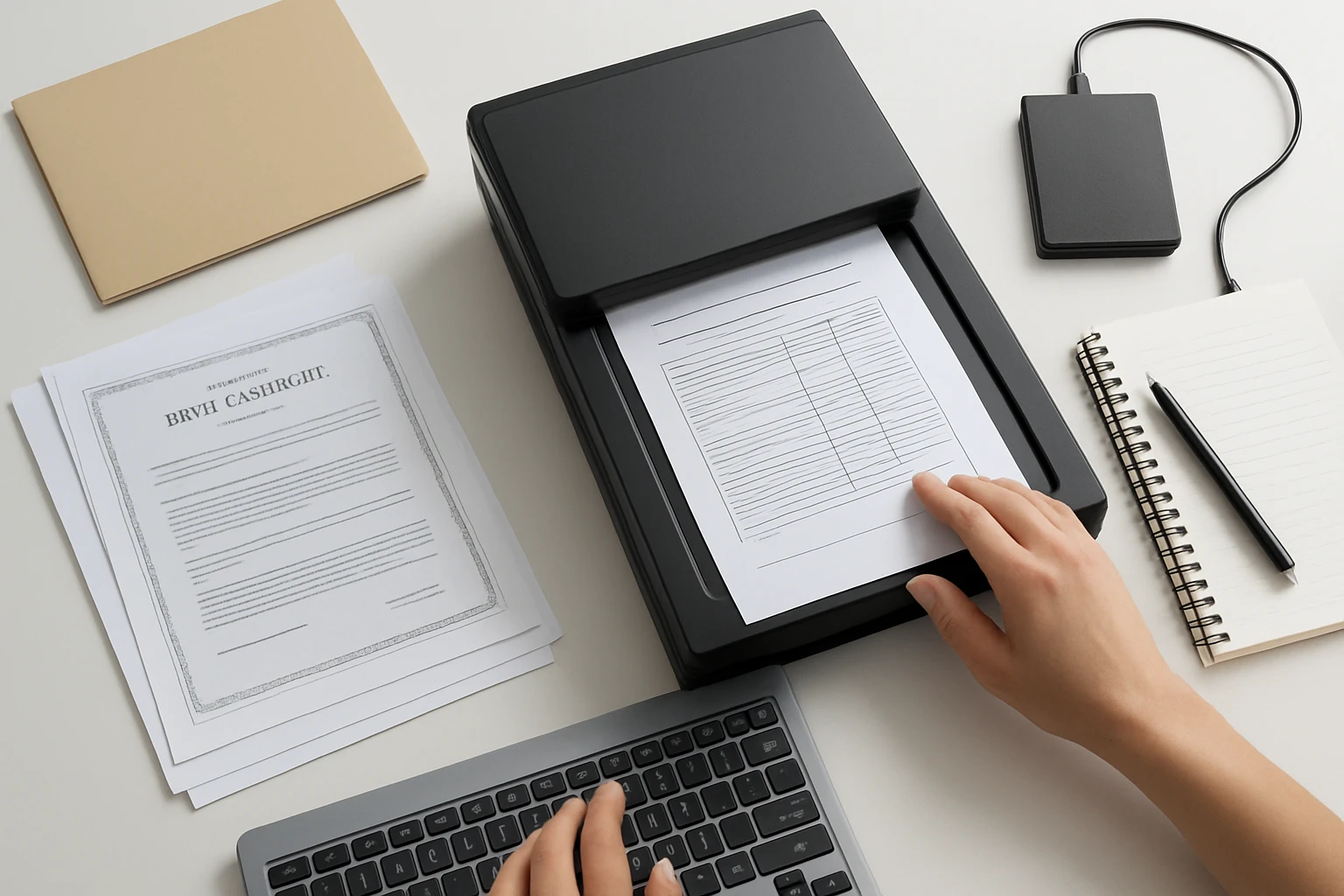

Introduction
One often underestimates the importance of having digital copies of critical paperwork. In a natural disaster, fire, or unexpected relocation, physical documents can become inaccessible or destroyed. This guide explains how to create secure offline copies of essential records, ensuring that vital information remains available when it is needed most. Readers will learn a systematic checklist, recommended tools, and best‑practice tips to protect their personal and financial data.
What You’ll Need
- A portable document scanner such as the HP Portable USB Document Scanner
- A set of USB flash drives, for example the SamData 8GB USB Flash Drives 5‑Pack
- A computer running Windows or macOS with the HP WorkScan software installed
- External hard drive or network‑attached storage for secondary backup (optional)
- Basic office supplies such as paper clips, a clean work surface, and a label maker
Step 1: Gather and Sort Physical Documents
The first phase involves collecting all documents that are essential for personal safety and legal compliance. One should include identification cards, birth certificates, passports, insurance policies, medical records, property deeds, and tax returns. Separate the papers into categories—identification, financial, medical, and legal—to simplify later organization. Use paper clips or a lightweight folder to keep each category together while avoiding permanent binding that could interfere with scanning.
Step 2: Prepare the Scanning Environment
Before operating any equipment, ensure that the work area is well lit and free of dust that could affect image quality. Place the scanner on a stable surface and connect it to the computer via the included USB‑C cable. Install the free HP WorkScan software, which provides auto‑scan, size detection, and image optimization features. Verify that the scanner is recognized by the operating system; the software should display a preview screen within a few seconds.
Step 3: Scan Documents Efficiently
Using the HP Portable USB Document Scanner, select the simplex one‑sided scanning mode to capture each page in a single pass. The device operates at 15 pages per minute and delivers 1200 dpi resolution, which is sufficient for both text clarity and image detail. For each category, create a dedicated scan job, name the file according to the category (e.g., "Identification_Passport.pdf"), and choose PDF as the output format for universal compatibility.
Key features that make this scanner ideal for emergency preparation include its lightweight portability, USB‑powered operation, and compatibility with both PC and Mac platforms. At a price of $279.99 and a rating of 4.3 out of 5 stars from 357 reviews, it offers a balance of performance and reliability without requiring a bulky desktop unit.
Step 4: Organize Digital Files Systematically
After scanning, store the PDF files in a hierarchical folder structure on the computer’s primary drive. For example, create a top‑level folder named "Emergency_Documents" and subfolders for "Identification," "Financial," "Medical," and "Legal." Rename each file to include the document type and date of the scan (e.g., "2024_Insurance_Policy.pdf"). This naming convention facilitates quick searching and future updates.
It is advisable to add metadata tags within the PDF properties, such as keywords like "insurance" or "taxes," to improve discoverability when using desktop search tools. Additionally, create a master index spreadsheet that lists each file, its location, and a brief description of its contents.
Step 5: Create Redundant Offline Backups
To protect against hardware failure, copy the organized folder onto at least two separate USB flash drives. The SamData 8GB USB Flash Drives 5‑Pack provide a cost‑effective solution, offering five color‑coded drives that can be assigned to distinct categories for visual identification.
Each drive supports USB 2.0 with an LED indicator that shows transfer status, and the capless design eliminates the risk of losing a protective cap. Priced at $21.99 for the five‑pack and rated 4.5 out of 5 stars from over 40,000 reviews, these drives deliver reliable performance for everyday backup tasks. After copying the files, safely eject the drives, label them clearly, and store them in separate locations such as a fire‑proof safe and a trusted family member’s home.
Tips & Pro Tips
- Use the scanner’s auto‑crop and background cleaning features to remove shadows and improve legibility.
- Compress PDF files with lossless settings to reduce storage size while preserving document integrity.
- Encrypt sensitive PDFs with a strong password; many PDF readers allow AES‑256 encryption.
- Rotate the SamData flash drives among colors to indicate the most recent backup version, reducing the chance of using an outdated copy.
- Periodically update the digital archive—at least once a year or after any major life event such as a marriage or property purchase.
Troubleshooting
| Problem | Possible Cause | Solution |
|---|---|---|
| Scanner does not detect paper | Paper size exceeds 8.5" × 14" or paper is not fed correctly | Adjust the paper guides to match the document width and ensure the sheet is placed flat on the feeder. |
| USB flash drive shows less capacity than expected | Drive is formatted with a file system that reserves space for system files | Re‑format the drive to FAT32 for maximum compatibility, or to exFAT if larger files are required. |
| Scanned PDF files are blurry | Resolution set lower than 300 dpi | Increase the resolution to at least 600 dpi in the HP WorkScan settings before scanning. |
Conclusion
By following this step‑by‑step checklist, one can transform vulnerable paper records into secure digital copies that are readily accessible during emergencies. The combination of a portable scanner and reliable flash drives provides a practical, low‑cost solution that safeguards personal and financial information. Regularly reviewing and updating the archive ensures that the digital backup remains current and trustworthy. One is encouraged to implement this system promptly, thereby reducing the risk of losing critical documents when unforeseen events occur.
Products Mentioned in This Guide
Frequently Asked Questions
Why should I create offline digital copies of essential documents?
Offline copies protect your records from disasters, theft, or internet outages, ensuring you can access them when you need them most.
What types of documents are most important to digitize for emergencies?
Birth certificates, passports, insurance policies, medical records, financial statements, and property deeds are top priorities.
Which scanner and storage tools are recommended for a quick, reliable backup?
A portable USB scanner like the HP Portable USB Document Scanner paired with 8 GB USB flash drives and an optional external hard drive provides fast, portable backups.
How can I keep my offline digital files secure from unauthorized access?
Encrypt the files with strong passwords, store the drives in a fire‑proof safe, and keep a separate backup in a different location.
What is a simple step‑by‑step workflow for digitizing and organizing documents?
Scan each document, name files clearly (e.g., ‘2024‑04‑Passport.pdf’), save them to a labeled USB drive, then copy to a secondary backup and store both securely.
